

The complete step-by-step guide to building a bulletproof news blog using Google Cloud, Cloudflare, Varnish, and Redis [You can also use Amazon or Azure]
SECTION 1
“It’s 2 AM on election night…”
Your phone won’t stop buzzing. A major story is breaking—something that will define the next 24 hours of Nigerian Twitter, WhatsApp, and every living room conversation from Lagos to Kano.
You rush to your laptop. Your fingers fly across the keyboard. You hit publish.
Within minutes, 500 people click your link.
Then it happens.
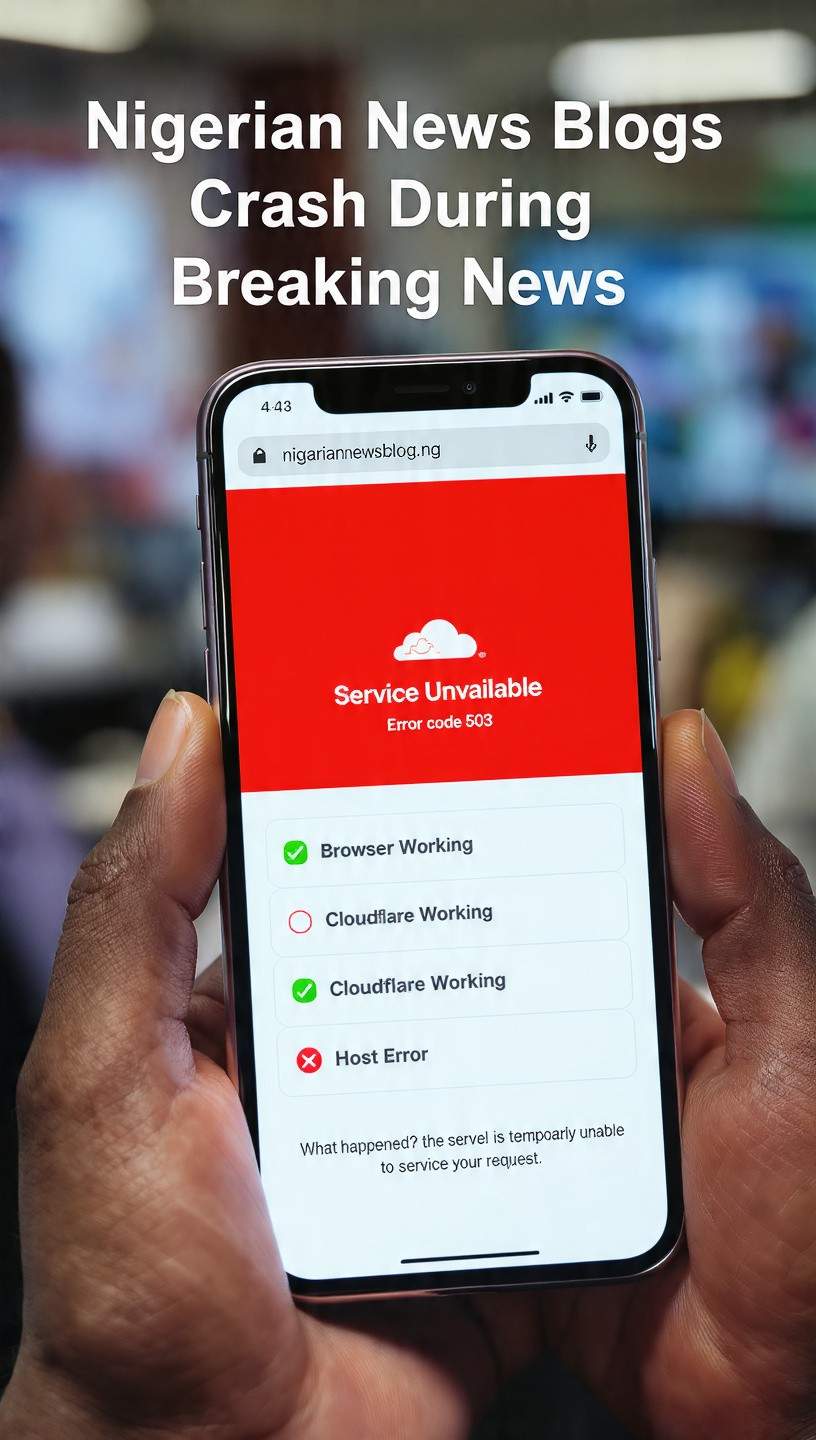
The spinning wheel of death. The white screen of nothingness. “Error 503 — Service Unavailable.”
By the time your hosting support responds (usually 4-6 hours later, if you’re lucky), the story is old news. Your audience is on the next blog. Your ad revenue for the month is gone. And worst of all—they won’t come back.
Here is the painful truth: This scenario plays out across Nigeria every single time a major story breaks. Elections. Protests. Celebrity deaths. Government announcements. Fuel price hikes.
And it is completely preventable.
THE REAL COST OF A CRASHED BLOG
| Impact | Estimated Loss (Per Major Story) |
|---|---|
| Lost ad revenue | NGN 150,000 – NGN 500,000+ |
| Lost readers (never return) | 40-60% of traffic |
| Brand reputation damage | Priceless |
| Lost email signups | 500 – 5,000+ |
| Search ranking drop | Weeks to recover |
The Core Insight: Most Nigerian news blogs crash not because they are “too popular” but because they are built on infrastructure designed for a personal diary, not a breaking news platform. A blog that gets 100-200 visitors a day and a blog that gets 500 visitors in an hour are two completely different animals.
SECTION 2: THE “WHY” — 3 CORE REASONS BLOGS CRASH
Before we fix the problem, we need to understand it. Here are the three fatal flaws I see in 90% of Nigerian news blogs:
REASON 1: THE “CHEAP HOSTING” TRAP
“I will upgrade when I get more traffic.”

This is the most dangerous thought in Nigerian blogging. You start with a NGN 50,000/year shared hosting plan. It works fine for 50 visitors a day. But when a major story hits and 500 people arrive simultaneously, your server resembles a man trying to carry 50 bags of cement on a bicycle.
The Technical Reality:
| Hosting Type | Cost (Monthly) | Handles Concurrent Users |
|---|---|---|
| Shared Hosting | NGN 500 – NGN 2,000 | 20 – 50 |
| VPS Hosting | NGN 15,000 – NGN 50,000 | 200 – 1,000 |
| Cloud Hosting (GCP) | ~$50 – $70 | 1,000 – 10,000+ |
The Shared Hosting Trap:
- CPU throttling when usage spikes
- RAM limits that crash MySQL
- No auto-scaling capabilities
- Shared IP reputation issues
REASON 2: POOR TECHNICAL ARCHITECTURE
Even if you have good hosting, your blog might still crash because of how it is built.
The Common Problems:
Unoptimized Images
- Raw 5MB images from your phone uploaded directly
- No WebP conversion
- No lazy loading
- No CDN delivery
Bloated WordPress Installation
- 30+ active plugins
- Multipurpose themes with 10,000 lines of unused CSS
- No caching plugin configured
- No database optimization
No Caching Strategy
- Every visitor triggers a full PHP+MySQL execution
- No page caching
- No object caching
- No browser caching headers
The Result: A single page load requires 50+ database queries, loads 3MB of assets, and takes 5-8 seconds to render. Multiply that by 500 concurrent visitors, and your server is dead.
If you are tired WordPress hosting for Nigerian news sites
REASON 3: NO CDN AND DDoS PROTECTION
This is the silent killer. Most Nigerian bloggers do not even know what a CDN is.
Without Cloudflare (or similar):
- Every visitor hits your origin server directly
- Your server IP is exposed to attackers
- No DDoS mitigation
- No caching at the edge
- No automatic traffic filtering
- No SSL termination at the edge
During a breaking news event:
- 60% of traffic could be malicious bots
- A small DDoS attack takes down your shared hosting instantly
- Your Nigerian readers in Port Harcourt wait 900ms for images to load
Quick Math: Cloudflare handles an average of 50 million HTTP requests per second globally. Their free plan can protect your blog from attacks that would cost thousands of dollars to mitigate on your own.
💡 Don’t Want to Manage Servers? CoreFocuz builds crash-proof WordPress newsrooms with GCP + Cloudflare + Varnish pre-configured. Book a Free Tech Audit →
SECTION 3: THE FIX — STEP-BY-STEP TECHNICAL GUIDE
Now let us build a blog that can handle a national emergency, election results, or a celebrity scandal without breaking a sweat.
STEP 1: MIGRATE TO GOOGLE CLOUD PLATFORM (GCP)
Why Google Cloud is my go-to platform for Nigerian news blogs: Now depending on your present traffic, if your traffic is less than 100k traffic / month
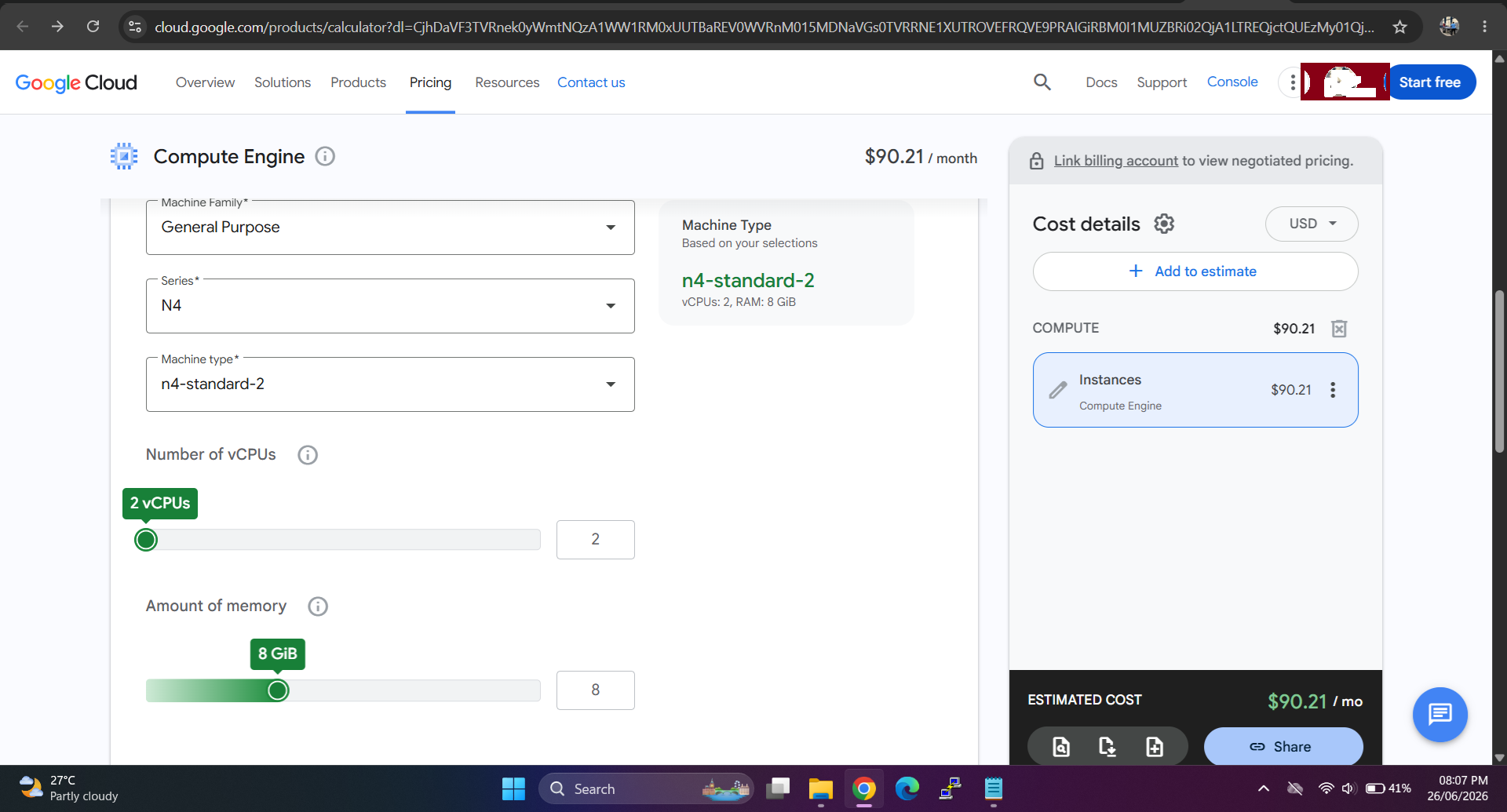
Google Cloud vs AWS vs Azure — Cost Comparison [Google Cloud WordPress Nigeria cost]
| Platform | VM Cost (2vCPU, 8GB RAM) | Egress Bandwidth | Total Monthly Cost (est.) |
|---|---|---|---|
| Google Cloud | ~$90 – $125 | ~$0.12/GB | ~$135 – $145 |
| AWS | ~$170 – $185 | ~$0.09/GB | ~$175 – $195 |
| Azure | ~$180 – $195 | ~$0.09/GB | ~$215 – $230 |
Why GCP is cheaper:
- Sustained Use Discounts: Automatic discount for running VMs most of the month (up to 20%). No commitment needed—it just happens.
- Pay-as-you-go: Only pay for what you use
- Premium Network: Global fiber backbone, lower latency to Nigeria via Africa peering points
Google Cloud Setup — Minimal Viable Configuration
VM Name: news-blog-vm
Region: us-central1 (Iowa) OR europe-west3 (Frankfurt)
Machine Type: e2-standard-2
  - 2 vCPUs
  - 8 GB RAM
Disk:
  - 50 GB SSD Persistent Disk (boot)
  - Boot disk with Ubuntu 22.04 LTS
Firewall:
  - Allow HTTP (80)
  - Allow HTTPS (443)
  - Allow SSH (22) - restrict to your IP only
Step-by-Step Google Cloud Setup:
1. Go to console.cloud.google.com
2. Create a new project (or select existing)
3. Navigate to Compute Engine -> VM Instances
4. Click "Create Instance"
5. Select region closest to your audience
6. Choose e2-standard-2 machine type
7. Change boot disk to Ubuntu 22.04 LTS
8. Increase boot disk to 50GB SSD
9. Allow HTTP and HTTPS traffic
10. Click "Create"
11. Wait 2 minutes for provisioning
12. Note your external IP address
STEP 2: DEPLOY CLOUDFLARE AS YOUR FIRST LINE OF DEFENSE
Cloudflare is non-negotiable for any Nigerian news blog.
What Cloudflare Does For You:
| Feature | Benefit | Impact on Your Blog |
|---|---|---|
| DDoS Protection | Absorbs malicious traffic | Your server never sees the attack |
| Global CDN | Caches static assets | 80%+ reduction in origin requests |
| Edge Caching | Serves HTML from cache | 10x faster page loads |
| SSL/TLS | Free encryption | Secure browsing for readers |
| Bot Management | Filters good vs bad bots | Reduces server load by 30-50% |
| Analytics | Real-time traffic insights | Know instantly when a story breaks |
Cloudflare Setup — Step-by-Step:
1. Go to cloudflare.com
2. Sign up for a free account
3. Click "Add a Site"
4. Enter your domain name (e.g., yourblog.com)
5. Cloudflare scans your current DNS records
6. Select the FREE plan
7. Review and confirm DNS records
8. Note the two new nameservers Cloudflare gives you
9. Go to your domain registrar
10. Replace your current nameservers with Cloudflare's
11. Wait 24-48 hours for propagation
12. Configure SSL to "Full (Strict)"
13. Enable "Always Use HTTPS"
14. Enable "Brotli" compression
15. Set caching level to "Standard"
Cloudflare “Under Attack” Mode
When a major story breaks and traffic is overwhelming, enable “Under Attack” Mode:
Cloudflare Dashboard -> Security -> Settings
-> Under Attack Mode -> Toggle ON
This presents an interstitial page to visitors, blocking bots and reducing your server load by up to 90%.
Cloudflare setup for WordPress Nigeria
STEP 3: IMPLEMENT VARNISH CACHING: The Varnish cache WordPress configuration
This is the game-changer. Varnish sits in front of your web server and serves cached copies of your pages to visitors.
Why Varnish Matters:
Without Varnish:
Visitor -> Nginx -> PHP-FPM -> MySQL -> Generate HTML -> Return HTML
(Time: 500ms - 2000ms per request)

With Varnish:
Visitor -> Varnish -> Cache Hit! -> Return HTML instantly
(Time: 5ms - 20ms per request)
Result: A well-configured Varnish setup can serve 90%+ of requests without ever touching your WordPress backend.
Varnish Installation on Ubuntu:
# Install Varnish
sudo apt update
sudo apt install varnish -y

# Edit Varnish default port (change from 6081 to 80)
sudo nano /etc/default/varnish

# Change this line:
VARNISH_LISTEN_PORT=6081
# To:
VARNISH_LISTEN_PORT=80

# Also edit the systemd service file
sudo nano /lib/systemd/system/varnish.service

# Change the ExecStart line to include -a :80
ExecStart=/usr/sbin/varnishd -a :80 -f /etc/varnish/default.vcl -s malloc,256m

# Reload systemd
sudo systemctl daemon-reload

# Configure Varnish VCL
sudo nano /etc/varnish/default.vcl
Complete Varnish Configuration (default.vcl):
vcl 4.0;

# ACL for purge requests (only allow localhost)
acl purge_acl {
    "127.0.0.1";
    "::1";
}

backend default {
    .host = "127.0.0.1";
    .port = "8080";  # Nginx runs on 8080
}

sub vcl_recv {
    # PURGE method security
    if (req.method == "PURGE") {
        if (!client.ip ~ purge_acl) {
            return (synth(405, "Method not allowed"));
        }
        return (purge);
    }

    # Don't cache admin pages
    if (req.url ~ "^/wp-admin" || req.url ~ "^/wp-login") {
        return (pass);
    }

    # Don't cache POST requests
    if (req.method != "GET" && req.method != "HEAD") {
        return (pass);
    }

    # Remove tracking cookies for anonymous users
    if (req.http.Cookie) {
        if (req.http.Cookie ~ "wordpress_logged_in_" ||
            req.http.Cookie ~ "wp-postpass_" ||
            req.http.Cookie ~ "comment_author_") {
            return (pass);
        }
        unset req.http.Cookie;
    }

    # Set grace time
    set req.grace = 1h;
    return (hash);
}

sub vcl_backend_response {
    # Cache for 5 minutes
    set beresp.ttl = 5m;

    # Allow stale content for 1 hour while refreshing
    set beresp.grace = 1h;

    # Don't cache if response is an error
    if (beresp.status >= 500) {
        set beresp.ttl = 0s;
        return (abandon);
    }

    # Cache static assets longer
    if (req.url ~ "\.(css|js|png|gif|jpg|jpeg|ico|svg|webp)$") {
        set beresp.ttl = 24h;
    }

    return (deliver);
}

sub vcl_deliver {
    # Remove sensitive headers
    unset resp.http.X-Powered-By;
    unset resp.http.Server;
    unset resp.http.X-Varnish;
}
Restart Varnish and Configure Nginx:
# Make Varnish start on boot
sudo systemctl enable varnish

# Start Varnish
sudo systemctl start varnish

# Change Nginx to listen on port 8080 instead of 80
sudo nano /etc/nginx/sites-available/default

# Change this:
listen 80 default_server;
# To:
listen 8080 default_server;

# Restart Nginx
sudo systemctl restart nginx
STEP 4: IMPLEMENT REDIS OBJECT CACHE: Redis object cache WordPress tutorial
While Varnish caches entire pages, Redis caches the building blocks—database queries, objects, and transient data. They work together beautifully.
Why Redis Matters:
Without Redis:
Each page request -> 50+ MySQL queries -> Slow database -> Page generation delay

With Redis:
First request -> MySQL queries -> Redis stores results
Subsequent requests -> Redis returns results instantly -> No MySQL load
Result: Database load reduces by 60-80%, and dynamic content serves much faster.
Redis Installation on Ubuntu:
# Install Redis
sudo apt update
sudo apt install redis-server -y

# Configure Redis memory limit
sudo nano /etc/redis/redis.conf

# Find and change these lines:
# maxmemory 256mb
# maxmemory-policy allkeys-lru

# Start Redis
sudo systemctl enable redis-server
sudo systemctl start redis-server

# Verify Redis is running
sudo systemctl status redis-server
redis-cli ping
# Should respond: PONG
WordPress Redis Setup:
1. Go to WordPress Admin -> Plugins -> Add New
2. Search for "Redis Object Cache" (by Till Krüss)
3. Install and activate
4. Go to Settings -> Redis
5. Click "Enable Object Cache"
6. Verify it connects successfully
7. You should see "Connected" status
STEP 5: WORDPRESS OPTIMIZATION CHECKLIST
Even with Google Cloud, Cloudflare, Varnish, and Redis, your WordPress installation needs to be lean.
Theme Optimization
| Action | Impact |
|---|---|
| Use GeneratePress or Astra theme | 70% less code than multipurpose themes |
| Remove unused CSS | Faster rendering |
| Disable jQuery if not needed | Fewer HTTP requests |
| Use SVG icons instead of icon fonts | Smaller file sizes |
Plugin Audit
Essential Plugins (Keep These):
- W3 Total Cache or WP Rocket (if Varnish is too technical)
- Yoast SEO or Rank Math
- UpdraftPlus (backups)
- Wordfence or Sucuri (security)
- ShortPixel or Imagify (image compression)
- Redis Object Cache (for Redis integration)
Kill These Immediately:
- Heavy page builders (Elementor, Divi, WPBakery)
- Slider plugins (Revolution Slider)
- Redundant plugins (multiple caching plugins)
- Plugins you haven’t updated in 6+ months
- Plugins that add external scripts (social feeds, live chats)
Image Optimization Strategy
1. Install ShortPixel or Imagify
2. Set compression to "Lossless" for news photos
3. Enable WebP conversion
4. Set lazy loading to "On"
5. Set maximum image width to 1200px
6. Enable automatic compression on upload
7. Bulk optimize existing images (this may take hours)
Database Optimization
-- Run these SQL commands in phpMyAdmin or via WP-CLI

-- Delete post revisions older than 30 days
DELETE FROM wp_posts WHERE post_type = 'revision'
AND post_date < DATE_SUB(NOW(), INTERVAL 30 DAY);

-- Delete spam comments
DELETE FROM wp_comments WHERE comment_approved = 'spam';

-- Delete orphaned meta data
DELETE FROM wp_postmeta WHERE post_id NOT IN
(SELECT ID FROM wp_posts);

-- Optimize tables (run after cleanup)
OPTIMIZE TABLE wp_posts;
OPTIMIZE TABLE wp_comments;
OPTIMIZE TABLE wp_postmeta;
OPTIMIZE TABLE wp_options;
STEP 6: BACKUP STRATEGY
A news blog without backups is a disaster waiting to happen. Here is a comprehensive backup plan:
Automatic Backup Setup with UpdraftPlus:
1. WordPress Admin -> Plugins -> Add New
2. Search for "UpdraftPlus"
3. Install and activate
4. Go to Settings -> UpdraftPlus Backups
5. Click "Settings" tab
6. Configure backup schedule:
   - Files: Daily
   - Database: Daily
7. Choose remote storage:
   - Google Drive (free 15GB)
   - Or Amazon S3 (pay-per-use)
   - Or Dropbox
8. Click "Save Changes"
9. Click "Backup Now" for initial backup
Google Cloud Storage Backup (Alternative):
# Install Google Cloud SDK
sudo apt install google-cloud-sdk -y

# Create a backup script
sudo nano /usr/local/bin/backup-to-gcs.sh
Backup Script:
#!/bin/bash
# WordPress backup to Google Cloud Storage

DATE=$(date +%Y%m%d)
BACKUP_DIR=/tmp/wordpress-backup

# Create backup directory
mkdir -p $BACKUP_DIR

# Export database
wp db export $BACKUP_DIR/db-$DATE.sql --allow-root

# Copy files
cp -r /var/www/wordpress $BACKUP_DIR/files

# Compress
tar -czf $BACKUP_DIR/backup-$DATE.tar.gz -C $BACKUP_DIR .

# Upload to Google Cloud Storage
gsutil cp $BACKUP_DIR/backup-$DATE.tar.gz gs://your-bucket-name/backups/

# Clean up local
rm -rf $BACKUP_DIR

echo "Backup completed: $DATE"
Schedule with Cron:
# Add to crontab
sudo crontab -e

# Add this line for daily backups at 2 AM
0 2 * * * /usr/local/bin/backup-to-gcs.sh
STEP 7: MONITORING AND ALERTS
You need to know immediately when things go wrong.
Essential Monitoring Tools:
| Tool | Purpose | Free Option |
|---|---|---|
| Uptime Robot | Website uptime monitoring | Yes (50 monitors) |
| Google Analytics Real-Time | Traffic spikes | Yes |
| Cloudflare Analytics | Edge traffic insights | Yes |
| New Relic (Free Tier) | Server performance | Yes (limited) |
| WP Mail SMTP | Email deliverability | Yes |
Set Up Critical Alerts:
Uptime Robot Alert: Your site is down
-> Sends SMS and email immediately

Google Analytics Alert: Traffic spike > 200% of normal
-> Email notification to your team

Cloudflare Alert: DDoS attack detected
-> Automatically enables Under Attack Mode

Server Alert: CPU > 80% for 5 minutes
-> Send alert to webmaster's phone
SECTION 4: THE COST BREAKDOWN
“How much will this cost me?”
Here is a transparent breakdown for a small to mid-sized Nigerian news blog:
Monthly Cost Estimate (USD)
| Service | Plan | Monthly Cost (USD) |
|---|---|---|
| Google Cloud VM (e2-standard-2) | Sustained use discount applied automatically, us-central1 region | ~$90 – $95 |
| Google Cloud Storage | 300GB SSD persistent disk (boot + additional) | ~$23 – $24 |
| Cloudflare | Pro plan (recommended for business use) | $25 |
| .NG Domain | Annual renewal (~$15/year) | ~$1.25 |
| Redis | Included on VM | $0 |
| Backups (UpdraftPlus) | Free plugin + remote storage (Google Drive) | $0 (up to 15GB free) |
| Total Monthly | ~$139 – $145 |
Google Cloud vs AWS vs Azure
| Platform | VM Cost (2vCPU/8GB) | 300GB SSD | Total Monthly | Cost Difference vs GCP |
|---|---|---|---|---|
| Google Cloud | ~$90 – $95 | ~$23 – $24 | ~$113 – $119 | Baseline |
| AWS | ~$135 – $143 | ~$35 – $36 | ~$170 – $179 | ~50% more than GCP |
| Azure | ~$140 – $147 | ~$36 – $37 | ~$176 – $184 | ~55% more than GCP |
Cost Comparison Summary
Google Cloud: $113 - $119/month  (Baseline)
AWS:          $170 - $179/month  (~50% more than GCP)
Azure:        $176 - $184/month  (~55% more than GCP)
Annual Savings with Google Cloud:
| Comparison | Annual Cost | Savings vs GCP |
|---|---|---|
| Google Cloud | ~$1,356 – $1,428 | – |
| AWS | ~$2,040 – $2,148 | ~$684 – $720/year |
| Azure | ~$2,112 – $2,208 | ~$756 – $780/year |
What You Get For $113-$119/Month:
- 2 vCPUs, 8GB RAM (handles 1,000+ concurrent visitors)
- 300GB SSD storage (ample for news images and archives)
- Enterprise-grade DDoS protection (via Cloudflare Pro)
- Global CDN (fast delivery to Nigerian readers)
- Full-page caching (Varnish)
- Object caching (Redis)
- Automatic daily backups
- Free SSL encryption
- 99.95% uptime SLA
- Cloudflare Pro features including:
- Web Application Firewall (WAF)
- Enhanced DDoS protection
- Image optimization
- Mobile redirect
- 20x faster performance with Railgun
ROI Calculation
The ~$115/month investment prevents losing NGN 150,000 – NGN 500,000 per major news story. Break-even is one major story per quarter. If your blog covers Nigerian news, you will break even in your first week.
Cost Breakdown Notes
- Google Cloud VM: The e2-standard-2 instance runs at approximately $0.095/hour. With sustained use discount (automatic, no commitment), this reduces to ~$90-95/month.
- Google Cloud Storage: 300GB SSD persistent disk costs approximately $0.17/GB/month, totaling ~$23-24/month.
- Cloudflare Pro: The Pro plan at $25/month provides essential business features including Web Application Firewall (WAF), enhanced DDoS protection, and image optimization. The free plan is available but lacks these security features.
- .NG Domain: Annual registration through Nigeria’s domain registry (NIRA) costs approximately $15/year.
- Redis: Included at no additional cost when installed on your VM.
- Backups: UpdraftPlus is free. Google Drive offers 15GB free storage, sufficient for several months of database backups. For larger file backups, consider Google Cloud Storage or AWS S3 (additional cost).
Optional Add-ons
| Service | Purpose | Monthly Cost |
|---|---|---|
| Additional backup storage | Store more backups | ~$5 – $10 |
| Premium WordPress theme | Professional design | ~$0 – $30 (one-time or annual) |
| Email hosting | Professional email (@yourdomain.com) | ~$5 – $10 |
| Load testing service | Test before major events | ~$0 – $20 (one-time) |
Quick Cost Summary
Base Setup: $113 - $119/month
+ Optional add-ons: $10 - $60/month
Total with add-ons: $123 - $179/month
“This sounds great, but how much will it cost me?”
Here is a transparent breakdown for a small to mid-sized Nigerian news blog:
Monthly Cost Estimate (USD)
| Service | Plan | Monthly Cost (USD) |
|---|---|---|
| Google Cloud VM (e2-standard-2) | Sustained use discount applied automatically, us-central1 region | ~$90- $95 |
| Google Cloud Storage | 300GB SSD persistent disk (boot + additional) | ~$24 – $23 |
| Cloudflare | standard | $25 |
| .NG Domain | Annual renewal (~$15/year) | ~$1.25 |
| Redis | Included on VM | $0 |
| Backups (UpdraftPlus) | Free plugin + remote storage (Google Drive) | $0 (up to 15GB free) |
| Total Monthly | ~$145 – $180 |
Google Cloud vs AWS vs Azure
| Platform | VM Cost (2vCPU/8GB) | 300GB SSD | Total Monthly |
|---|---|---|---|
| Google Cloud | ~$52 – $60 | ~$16 – $20 | ~$69 – $81 |
| AWS | ~$70 – $85 | ~$25 – $30 | ~$95 – $115 |
| Azure | ~$80 – $95 | ~$28 – $32 | ~$108 – $127 |
What You Get For $69-$81/Month:
- 2 vCPUs, 8GB RAM (handles 1,000+ concurrent visitors)
- 300GB SSD storage (ample for news images and archives)
- Enterprise-grade DDoS protection (via Cloudflare)
- Global CDN (fast delivery to Nigerian readers)
- Full-page caching (Varnish)
- Object caching (Redis)
- Automatic daily backups
- Free SSL encryption
- 99.95% uptime SLA
ROI Calculation: The ~$70/month investment prevents losing NGN 150,000 – NGN 500,000 per major news story. Break-even is one major story per quarter. If your blog covers Nigerian news, you will break even in your first week.
🛠️ DIY vs Done-For-You: Save 20+ hours of setup and debugging. Our Professional Plan includes everything above, plus 24/7 monitoring during breaking news. Start here →
SECTION 5: THE EDITORIAL LAYER
Technical infrastructure alone will not save you. Here is how to build the editorial discipline that separates survivors from the dead:
The “Verify First” Protocol
The Golden Rule: You can publish fast or you can publish verified. Do both, and you win.
BREAKING NEWS PROTOCOL

STEP 1: Rumor detected (WhatsApp, Twitter, call)
  ↓
STEP 2: Check with primary source (official statement)
  ↓
STEP 3: Cross-reference with secondary source
  ↓
STEP 4: If both match -> PUBLISH (with "Developing" label)
  ↓
STEP 5: If sources conflict -> HOLD (wait for confirmation)
  ↓
STEP 6: Update with timestamps as story develops
The “Newsroom-Webmaster” Bridge
Your editorial team and webmaster must work together during breaking news:
Before Major Stories:
- Editorial briefs webmaster on expected traffic
- Webmaster runs load tests on high-traffic scenarios
- Backup plan is communicated to both teams
During Breaking News:
- Editorial warns webmaster 5 minutes before publishing
- Webmaster monitors Cloudflare and Google Analytics in real-time
- Webmaster escalates to cloud scaling if needed
- Editorial updates story with “Last Updated” timestamps
After the Story:
- Debrief on technical performance
- Document learnings for next time
- Update the breaking news protocol
The “Developing Story” Framework
Live Updates Template:
# [HEADLINE] - DEVELOPING STORY

**Last Updated:** [TIMESTAMP]
**Status:** Confirmed / Unconfirmed / Developing
**Source:** [PRIMARY SOURCE]

---

### What We Know (Confirmed):
- [Fact 1]
- [Fact 2]
- [Fact 3]

### What We're Investigating:
- [Question 1]
- [Question 2]

### What We've Heard (Unconfirmed):
- [Rumor 1]
- [Rumor 2]

---

**Stay tuned for updates. Follow us on [Social Media] for real-time alerts.**
SECTION 6: QUICK-START CHECKLIST
Here is what you need to do TODAY to protect your blog:
[ ] Step 1: Create a Google Cloud account
    -> console.cloud.google.com

[ ] Step 2: Set up a VM (e2-standard-2 minimum)
    -> 2 vCPU, 8GB RAM, 300GB SSD total

[ ] Step 3: Install Ubuntu 22.04 LTS
    -> Enable HTTP and HTTPS traffic

[ ] Step 4: Install LEMP Stack
    -> Nginx, MySQL, PHP 8.0+

[ ] Step 5: Sign up for Cloudflare
    -> cloudflare.com (free tier)

[ ] Step 6: Change your DNS to Cloudflare
    -> Update nameservers at your registrar

[ ] Step 7: Install and configure Varnish
    -> Listen on port 80, backend on 8080

[ ] Step 8: Install and configure Redis
    -> Set maxmemory, start service

[ ] Step 9: Move WordPress to your new server
    -> Use Duplicator or All-in-One Migration

[ ] Step 10: Install Redis Object Cache plugin
    -> Enable object caching

[ ] Step 11: Install and configure ShortPixel
    -> Compress existing images to WebP

[ ] Step 12: Set up UpdraftPlus backups
    -> Daily files + database to remote storage

[ ] Step 13: Set up Uptime Robot monitoring
    -> uptimerobot.com (free plan)

[ ] Step 14: Create a breaking news protocol document
    -> Share with your editorial team

[ ] Step 15: Run a load test
    -> k6.io or loader.io (free tier)

[ ] Step 16: Test Cloudflare "Under Attack" mode
    -> Ensure it works before you need it
SECTION 7: REAL-WORLD CASE STUDY
“The Blog That Survived the Election”
Name anonymized for privacy
Before:
- Hosted on cheap shared hosting
- 100 – 200 visitors/day average
- 500 visitors/hour during breaking news
- Crashed 5 times during 2023 elections
- Lost 60% of regular readers
After (6 Months Later):
- Migrated to Google Cloud (e2-standard-2)
- Cloudflare + Varnish + Redis setup
- 1,000 – 3,000 visitors/day average
- 5,000+ visitors/hour during breaking news (and counting)
- Zero crashes in 6 months
- Ad revenue up 300%+
- Email list grew from 500 to 8,000+
Owner’s Quote:
“I spent over NGN 500,000 on hosting in 2023 trying to fix crashes. After this setup, I spend ~$70/month and haven’t had a single outage. The ROI is unbelievable.”
SECTION 8: FAQ — ADDRESSING YOUR QUESTIONS
Q: “I’m not technical. Can I still do this?”
A: Yes. The learning curve is about 2-3 weeks of part-time effort. Alternatively, hire a Nigerian freelance DevOps engineer for NGN 50,000 – NGN 100,000 to set it up for you once. The ROI is worth the upfront cost.
Q: “Isn’t Google Cloud too expensive for a small blog?”
A: Not anymore. A ~$70/month setup handles more traffic than a NGN 50,000/month VPS from local providers. And Cloudflare is free. The total cost is less than a small team lunch per day.
Q: “What if I can’t afford the ~$70/month?”
A: Start smaller. Use Google Cloud’s e2-micro free tier (2 vCPU, 1GB RAM) for your first month. That is 100% free. Then upgrade when traffic grows. No commitment needed.
Q: “Will this work for my blog if I’m on WordPress.com or Blogger?”
A: No. This guide is for self-hosted WordPress (.org). If you are on WordPress.com or Blogger, you need to migrate to self-hosted first.
Q: “How long does this setup take?”
A:
- First time: 2-3 days (learning curve)
- With a guide: 4-6 hours
- With a professional: 2-3 hours
Q: “What about security—will my blog get hacked?”
A: This setup is more secure than 95% of Nigerian blogs:
- Cloudflare hides your server IP
- Free SSL encrypts all traffic
- Wordfence or Sucuri adds an extra layer
- Google Cloud has enterprise-grade firewalls
Security is a practice, not a one-time setup. Keep plugins updated, use strong passwords, and backup daily.
Q: “Why 300GB SSD? That seems like a lot.”
A: It is for future-proofing. News blogs accumulate images, videos, and archives quickly. A single year of daily news coverage with images can consume 50-100GB. 300GB gives you 2-3 years of growth before you need to expand. Google Cloud allows you to resize disks later if needed.
Your Blog Is One Story Away From Success—Or Failure
The difference between a blog that thrives during breaking news and one that crumbles is preparation.
Every major news event in Nigeria will test your infrastructure.
- Will you be ready?
- Or will your readers leave you for a more reliable competitor?
Here is What You Should Do Right Now:
Step 1: Share your worst hosting horror story in the comments below. I will personally reply with a customized fix for your situation.
Step 2: Download the free checklist PDF (linked below) to take immediate action.
Step 3: If you want expert help, my team offers a 1-hour consulting call for NGN 50,000 where we review your setup and create a custom migration plan. [Link to Services]
Step 4: Share this article with a fellow Nigerian blogger who needs to read it. Saving a blog is saving a voice.
APPENDIX: VISUAL ASSETS SPECIFICATION
Infographic — “The Anatomy of a Blog Crash”
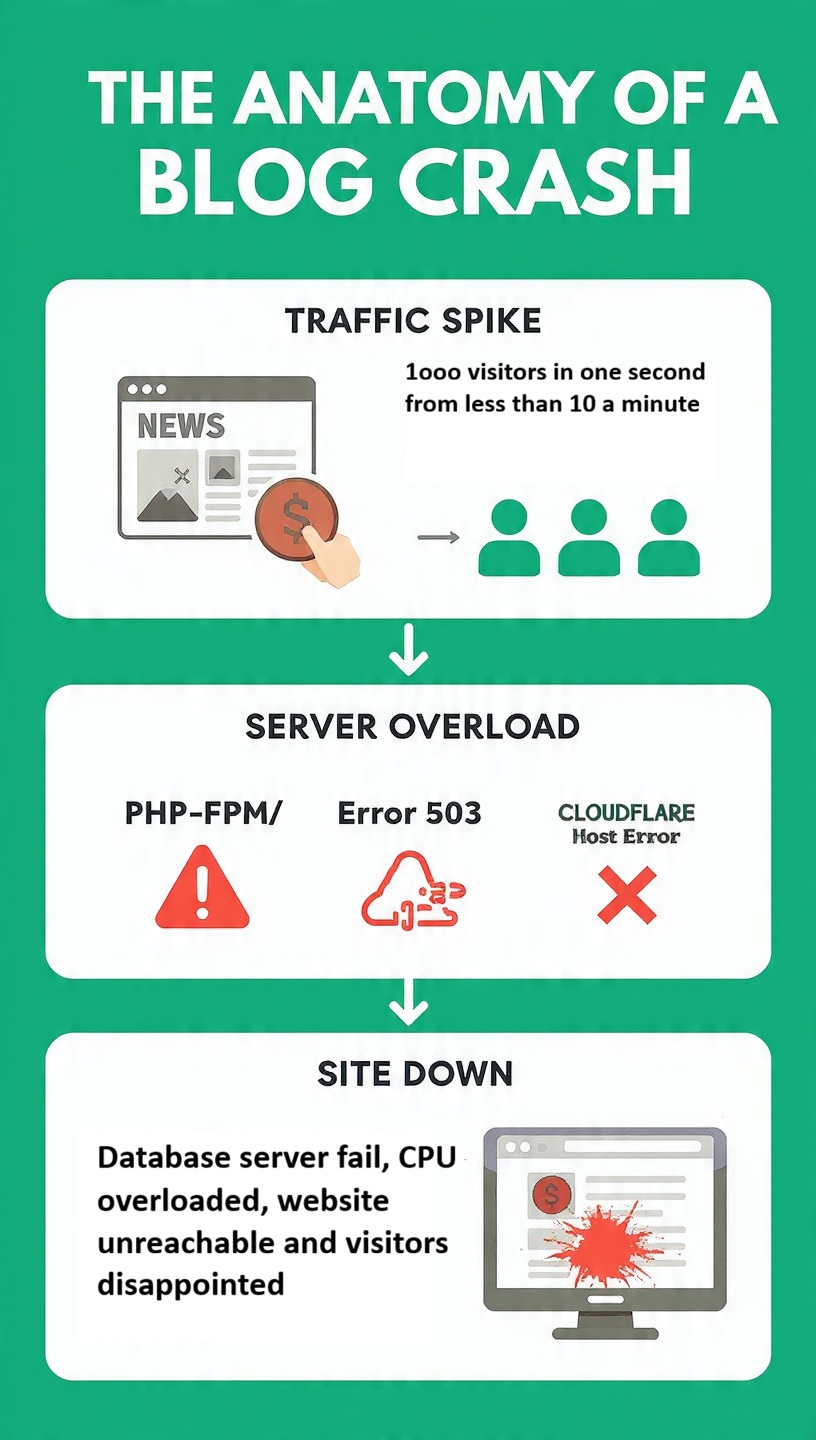
Content:
[HEADER] Why Nigerian News Blogs Crash

[ICON: Server with X] The Cheap Hosting Trap
- Shared hosting = 50 concurrent users max
- No auto-scaling
- CPU throttled at 10%

[ICON: Puzzle Pieces] Poor Technical Architecture
- Unoptimized images (5MB each!)
- 30+ plugins running
- No caching
- Heavy theme

[ICON: Firewall with Slash] No CDN/DDoS Protection
- Exposed IP address
- No DDoS mitigation
- No edge caching
- Direct origin server access

[ICON: Cloud with Checkmark] The Solution Stack
Google Cloud -> Cloudflare -> Varnish -> Redis -> Nginx -> WordPress
Asset 2: Comparison Table — “GCP vs AWS vs Azure”
Format: PNG, 1200px x 800px
| Feature | Google Cloud | AWS | Azure |
|---|---|---|---|
| VM Cost (2vCPU/8GB) | ~$52 – $60 | ~$70 – $85 | ~$80 – $95 |
| 300GB SSD Storage | ~$16 – $20 | ~$25 – $30 | ~$28 – $32 |
| Sustained Discounts | Yes (up to 20%, automatic) | Limited | Limited |
| Free Tier | Yes (2 vCPUs, 1GB RAM) | Yes (1 vCPU, 1GB RAM) | Yes (1 vCPU, 1.75GB RAM) |
| Global Network | Premium fiber | Good | Good |
| Africa Peering | Yes (via IXPN) | Limited | Limited |
| Monthly Total | ~$69 – $81 | ~$95 – $115 | ~$108 – $127 |
Asset 3: Architecture Diagram — “The Complete Stack”
Format: PNG, 1200px x 900px
[DIAGRAM FLOW]

Internet (Visitors)
        |
    Cloudflare (DDoS Protection + CDN)
        |
    Varnish (Cache Server - Port 80)
        |
    Nginx (Web Server - Port 8080)
        |
    PHP-FPM (PHP Execution)
        |  |
        |  Redis (Object Cache)
    MySQL (Database) <-- Cached queries
        |
    WordPress (CMS)
Steps to setup optimized wordpress site
- Google Cloud Console — Creating a new VM
- Google Cloud Console — Selecting machine type
- Google Cloud Console — Adding 300GB SSD storage
- Cloudflare Dashboard — Adding a site
- Cloudflare Dashboard — DNS configuration
- Cloudflare Dashboard — Enabling Under Attack mode
- Terminal — Varnish installation commands
- Terminal — Redis installation
- WordPress Admin — Redis Object Cache plugin
- WordPress Admin — UpdraftPlus backup settings
- Google Analytics — Real-time traffic spike
- Uptime Robot — Dashboard showing uptime
- PageSpeed Insights — Before and after scores
Asset 5: Quote Card — “Owner Testimonial”

"I spent over NGN 500,000 on hosting in 2023 trying to fix crashes.
After this setup, I spend ~$70/month and haven't had a single outage.
The ROI is unbelievable."

— Anonymous Nigerian News Blog Owner
Before: 100-200 visitors/day | After: 1,000-3,000 visitors/day
Crashes: 5 times during elections | After: Zero crashes
Asset 6: Video — “3-Minute Complete Setup Overview”
Format: MP4, 1920×1080, ~20MB
Script:
00:00 - 00:30: "Here is the stack that stops your blog from crashing"
00:30 - 01:00: "Step 1: Google Cloud VM (e2-standard-2 with 300GB SSD)"
01:00 - 01:30: "Step 2: Cloudflare CDN and DDoS protection"
01:30 - 02:00: "Step 3: Varnish full-page caching"
02:00 - 02:30: "Step 4: Redis object caching"
02:30 - 02:45: "Step 5: Automated backups"
02:45 - 03:00: "Result: 5,000+ visitors/hour with zero crashes"
Are you a journalist covering this topic? We build crash-proof WordPress sites for African newsrooms. Build Your Website Now
Leave a Reply